Notepad - Notes and Notebook
- 4.0
- Rating
- 10.00M
- Installs
- Free
- Price
 Analysis by App-foxy
I like note-taking apps that stay out of my way, and Notepad - Notes and Notebook takes that approach seriously. It is a free tools app from notes, designed for quick writing rather than elaborate project management. I can open it, put something down, and move on without first building a workspace, choosing a template, or learning a complicated system. That simplicity is its strongest quality, but it also tells me exactly who will enjoy it and who may eventually want something more advanced.
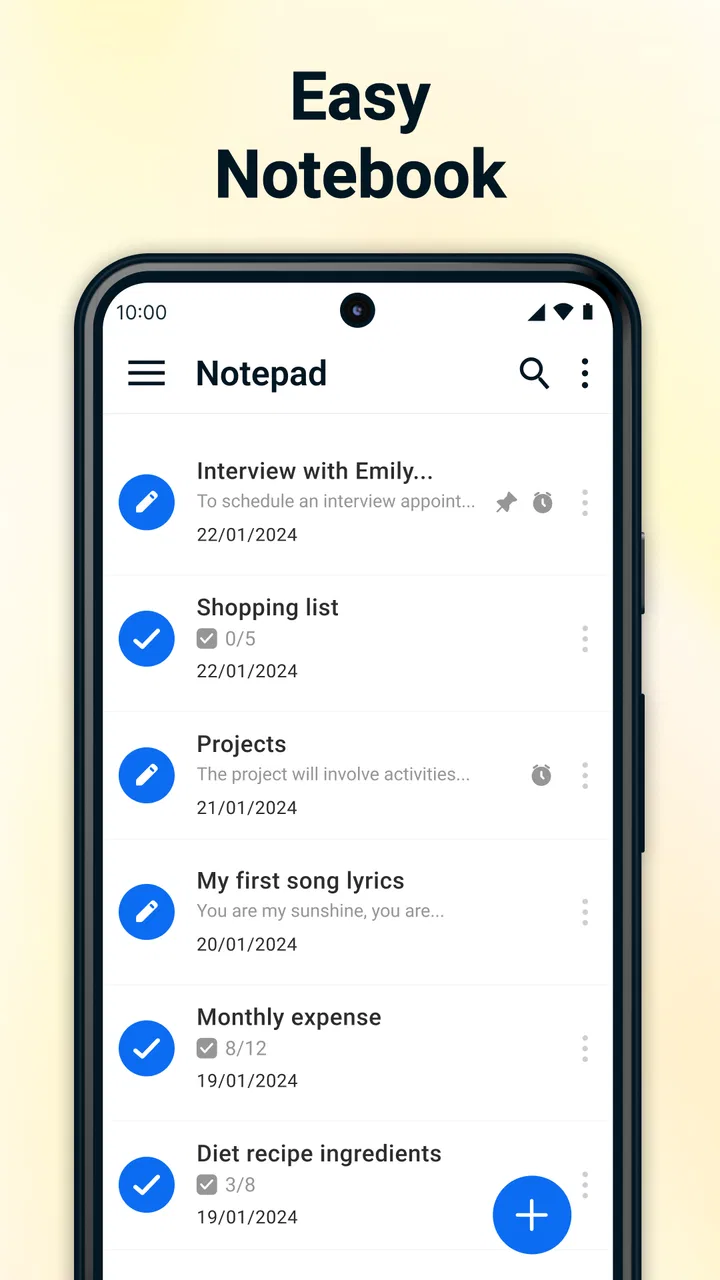
The app’s store summary points to several everyday jobs: writing notes, making to-do lists, keeping a grocery list, and adding a note after a call. Those uses sound ordinary, yet they cover a surprisingly large part of the small reminders I normally carry in my head. Its appeal is not that it tries to replace every productivity tool. Instead, it gives short pieces of information a clear place to land.
How Notepad fits into everyday writing
My first impression is that this is best treated as a quick-capture notebook. I would use it for a shopping list, a phone number I need for a few hours, a rough plan for the day, or a reminder that is too specific for a calendar event. The value comes from reducing the distance between having a thought and recording it.
You May Also Like

 Blood Strike: 2.5 Anniversary
Blood Strike’s Loadouts Turn Every Drop Into a Tactical Gamble
A close look at Blood Strike’s custom loadouts: how fast access to signature weapons reshapes its battle royale rhythm, rewards preparation, and narrows the gap between fights.

 Pandora - Music & Podcasts
Pandora’s Music Is Easy to Start, but Harder to Recover
Pandora’s strength is its low-effort path from a seed to a station. Its weak spot is how much confidence it asks you to place in connection, setup, and quiet recovery.

 8 Ball Pool
 Is Built on Rivalries, Rematches, and Routine
A close look at the rivalries, rematches, shared routines, and unanswered safety questions that turn a quick pool match into a persistent mobile community.

 Samsung Music
’s Quiet Strength Is Playing What You Already Own
Its reach comes less from spectacle than from dependable access to a personal library. That simplicity is both the app’s strongest retention engine and its ceiling.

 AccuWeather: Weather Radar
AccuWeather Review: A Quick, Clear Forecast for Everyday Decisions
For everyday plans, the best forecast is the one you can understand quickly. AccuWeather makes rain timing, radar, and local conditions easy to act on, with a few trade-offs.

 Hill Climb Racing
Why Hill Climb Racing Still Turns Crashes Into One More Run
A tiny car, a bumpy hill and one more upgrade: Hill Climb Racing keeps resurfacing because its simple chaos makes every near-miss feel personal.
More From Our News Desk



The app is listed as free, has an Everyone age rating, and runs on Android from version 9 onward. That makes it approachable for households with different phones and for people who do not want to pay before testing a basic note workflow. Its current version is 1.45, while the broad adoption shown by over ten million installs suggests that the straightforward format has found a sizeable audience.
There is also a useful distinction between a note and a task. A task says, “I need to do this.” A note can hold the details around it: the model number, the ingredients, the address, or the questions I want to ask. Notepad - Notes and Notebook is more comfortable when those two roles overlap. I can write a short list and add context underneath instead of scattering the information across separate apps.
A realistic grocery-list routine
Imagine I am leaving work and remember that I need vegetables, coffee, batteries, and a particular brand of detergent. I can create the list before leaving, then add a small note about the detergent while the detail is still fresh. In the shop, the list is easier to follow than a message sent to myself because each item is already grouped in one place. If I discover that one product is unavailable, I can adjust the wording rather than trying to reconstruct the list from memory.
The less obvious benefit is that a list can become a reusable record. After the trip, I might keep the note and edit it for the next visit instead of starting from an empty page. That works especially well for recurring household purchases, packing items, or a weekly cleaning routine. The trade-off is that I need to maintain the list myself; this is not a substitute for a full inventory or shared household system.
After-call notes are useful, but timing matters
The after-call note-taking idea is one of the app’s more practical touches. A phone conversation often ends with a promise, a name, or a follow-up detail that disappears quickly if I rely on memory. Writing it down immediately gives the conversation a concrete continuation. I could record “send document,” “ask about delivery,” or “call back on Monday” while the context is still clear.
This workflow is most helpful for calls that are short but consequential: arranging a repair, speaking with a school, confirming an appointment, or handling a delivery. It is not the same as a call recorder or a contact-management system. I would still need to add enough detail to recognize the note later, especially if several calls concern the same person or organization.
My practical advice is to begin each after-call entry with a recognizable label, such as the person’s name or the subject of the call, then put the action on the next line. That small habit turns a vague memory into something searchable by sight. It also prevents a list of notes from becoming a wall of identical “call back” reminders.
Where connectivity changes the experience
Connectivity matters most around the moments before and after writing. A note-taking app may feel completely independent while I am typing, but the phone itself can be affected by weak reception, background activity, account services, or a crowded connection. I do not treat the app as a communication tool; I treat it as a place to preserve my own words when a message or web page would be unnecessarily exposed to interruption.
That distinction is important. If I am standing in a basement, riding through a poor-signal area, or waiting for a call to connect, I want the act of writing to remain simple. At the same time, I would not assume that every synchronization, backup, or cross-device behavior is available just because the app is a notebook. Anyone who needs guaranteed access from several devices should examine that workflow separately rather than relying on assumptions.
For a data-conscious routine, I would write first and handle sharing later. A grocery list, a private thought, or an after-call reminder does not need to travel across a network merely to exist on my phone. When I do need to send information elsewhere, I can make that an intentional second step. This separation reduces accidental sharing and keeps the app focused on capture.
Using it while moving around
Notepad - Notes and Notebook makes the most sense in mobile situations where speed matters more than presentation. I can imagine using it in a parking lot before entering a store, beside a suitcase while packing, or during a break when I suddenly remember an errand. These are moments when opening a large productivity suite feels excessive.
Short entries are its natural territory. I would avoid composing a long report or a carefully formatted document on a phone-sized screen, because the app’s strength is immediacy rather than document production. For longer writing, a dedicated word processor is usually more comfortable. For structured work with deadlines, assignments, or dependencies, a task manager or calendar will provide stronger organization.
There is a useful mobile trick here: write in fragments first, then clean them up only if the note will live for a while. For example, I might capture “return cable / receipt drawer / before Friday” in a few seconds. Later, if the reminder becomes important, I can turn it into a clearer sentence. This prevents the common failure where I postpone recording something because I am trying to phrase it perfectly.
What happens when the phone or connection gets in the way?
The main risk in any quick note workflow is not usually the writing itself; it is losing track of what happens next. A note can successfully capture a thought and still fail as a reminder if I never review it. I therefore use different habits for temporary and lasting entries. Temporary notes get a clear action or a deletion decision, while lasting notes receive a descriptive opening line so I can understand them later.
Connectivity can add another layer of uncertainty. If I am expecting information to appear on another device, or if I am using a note as part of a communication chain, I should not confuse local capture with confirmed delivery. I would verify any important transfer separately. The safe workflow is simple: record the information, check that the note is visible in the app, and only then move on to whatever sharing or follow-up the situation requires.
Recovery also means recovering from my own messy habits. If I make several notes during a busy day, I can review them in one short session and decide which ones deserve a proper title, which belong in a to-do list, and which can be discarded. This is more effective than trying to organize every thought at the moment it arrives. The app supports the first step—capturing the thought—but the quality of the final system still depends on that review.
Privacy-minded and data-conscious use
I would be comfortable using a basic notebook for ordinary personal reminders, shopping details, rough ideas, and follow-up prompts. I would be more careful with passwords, financial credentials, identity documents, or highly sensitive medical information. A simple note app should not automatically become a secure vault just because it is convenient.
Keeping entries brief is helpful for both privacy and maintenance. Instead of copying an entire conversation into an after-call note, I would record the decision, the next action, and the one detail needed to recognize the context. This creates a useful record without turning the notebook into an uncontrolled archive of personal information.
Another good habit is to remove notes that have completed their purpose. A grocery list that remains for months can become confusing, and an old call reminder may look current when it is not. Periodic cleanup improves reliability more than adding elaborate categories. In my experience, a small notebook that I trust is better than a huge collection that I avoid opening.
How it compares with familiar alternatives
Compared with a phone’s default notes app, this app’s appeal is its clear focus on notepad behavior and practical lists. The difference may feel small if the built-in app already handles quick writing well. In that case, switching only makes sense if this workflow feels faster or better suited to the way I separate notes from other phone functions.
Compared with a cloud-centered document service, Notepad - Notes and Notebook feels less like a collaborative workspace and more like a personal scratchpad. A document service is the better choice when I need simultaneous editing, rich formatting, comments, or a dependable shared source. I would choose this app when I want to jot something down without turning a tiny reminder into a formal document.
Compared with a dedicated task manager, it is more flexible for mixed content but less specialized for planning. A task manager is preferable when recurring deadlines, priorities, notifications, and project relationships are central. Here, a list can contain tasks, but I should not expect the same level of scheduling discipline from a notepad.
Compared with a messaging app used as a personal inbox, this is a cleaner place for information that does not need to be sent. Messaging myself can be convenient, but old messages become mixed with conversations and media. A notebook keeps the purpose clearer. The trade-off is that I must create my own organization and follow-up habits instead of leaning on a communication timeline.
Who will appreciate it, and who should pass?
I think this app suits students who need a quick place for errands and study fragments, parents managing household lists, workers recording after-call actions, and anyone who wants a low-friction digital notepad. It is also a sensible starting point for someone who finds productivity systems intimidating. The Everyone rating and free access lower the barrier to trying it with ordinary, non-sensitive information.
I would look elsewhere if my priority were collaboration, advanced formatting, project planning, automatic scheduling, or a carefully controlled archive. People who move constantly between several devices should also choose their note system based on the exact access and recovery behavior they require, rather than assuming that a simple notebook will cover every connected workflow.
The app has earned a 4.2 average from around fifty-nine thousand ratings, with roughly seven thousand written reviews. I read that level of adoption as evidence that the basic idea is working for many people, not as proof that it will match every personal routine. The important question is whether I want a quick place to write or a broader productivity platform.
My connectivity verdict
After using it as a personal capture tool, I see Notepad - Notes and Notebook as a practical middle ground: more intentional than sending reminders to myself in a chat, but lighter than a full productivity suite. Its best moments happen on the move, immediately after a call, and whenever a small thought needs to be saved before it disappears.
The strongest workflow is capture now, review later, and share only when necessary. That approach respects the app’s simple design and avoids expecting it to manage tasks, collaboration, or sensitive records beyond its natural role. It also makes connectivity less distracting: the note becomes the first safe step, while any network-dependent follow-up remains a separate decision.
My final recommendation is straightforward. If you want a free, approachable tools app for notes, to-do lists, grocery planning, and after-call reminders, I would give Notepad - Notes and Notebook a try. If you need a connected workspace with deep organization, choose a more specialized alternative. For everyday mobile capture, though, its restraint is exactly what makes it useful.
FAQs for Notepad - Notes and Notebook
01What features does Notepad - Notes and Notebook offer?
Notepad - Notes and Notebook provides a straightforward and user-friendly interface for creating and organizing notes. Key features include text formatting, checklist creation, and the ability to categorize notes. Users can also set reminders, sync notes across devices, and protect sensitive information with password protection. Its simplicity and efficiency make it ideal for daily note-taking needs.
02Is Notepad - Notes and Notebook available on both Android and iOS?
Yes, Notepad - Notes and Notebook is available for both Android and iOS platforms. This ensures that users can enjoy a seamless experience regardless of their device. The app is optimized for both operating systems, providing a consistent and efficient performance, whether you're using a smartphone or a tablet.
03Does Notepad - Notes and Notebook support cloud synchronization?
Yes, the app supports cloud synchronization, allowing users to sync their notes across multiple devices. This feature ensures that your notes are always up-to-date and accessible from any device. Cloud sync is particularly useful for users who switch between devices frequently and need their information readily available.
04Can I use Notepad - Notes and Notebook offline?
Absolutely, Notepad - Notes and Notebook can be used offline. This means you can create, edit, and access your notes without an internet connection. Once you're back online, any changes made will be automatically synced to the cloud. This offline capability makes it convenient for users who are often on the go.
05Is there a cost associated with using Notepad - Notes and Notebook?
Notepad - Notes and Notebook is available as a free download, offering a range of basic features at no cost. However, there may be optional in-app purchases for premium features, such as advanced customization options or additional storage. Users can choose to upgrade for a more enhanced experience if desired.
Pros
- User-friendly interface for easy navigation.
- Supports voice memos for quick notes.
- Customization options with themes and fonts.
- Cloud sync ensures data safety across devices.
- Offline access to notes without internet.
Cons
- Limited text formatting options available.
- No collaboration features for shared notes.
- Ads can be intrusive in the free version.
- Lacks advanced organization tools like tags.
- No reminder or alert feature for notes.

Notepad - Notes and Notebook
Gallery